
Aepryus : Products : AepCalc : ACHelp
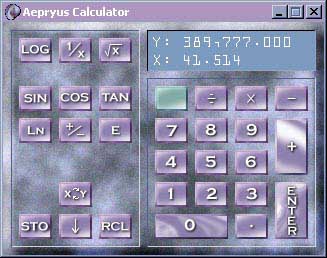
The AepCalc sports all of the standard scientific functions; handles octal, decimal and hexadecimal modes; and includes a clever memory facility.
This calculator was developed in order to solve certain deficiencies prevalent in the standard windows calculator program. Those major problems being:
AepCalc has a 10 number stack and a fair amount of flexibility in the formatting of the display of the numbers. (See Options below)
The calculator can be used indefintely with the mouse and screen buttons.
Alternatively, the calculator could be registered for the reasonable charge of $20 (US). At which point, a registration key will be sent to the user which will permanently enable the keyboard keys (and disable the introduction message)
If you would like to register the application please visit Aepryus Software's web site at:
If you have any questions, comments or any other correspondence with
Aepryus please send e-mail to WriteUs@Aepryus.com.
Thank you very much for any input that you might have.
The main advantage of RPN is that parentheses are not needed, which means that complex calculations can be made without having to keep track of which nested level of parentheses is currently being entered. This also means that calculations require fewer keystrokes.
Basically, in normal notation the operator (+ - * /) comes between the operands. Polish logician Jan Lukasiewicz discovered advantages to putting the operator before the operands. RPN puts the operator after the operands (thus Reverse Polish Notation).
For example, the following calculation ((32+3)*4 + (12-2))/(34 + 3*(2+1)), in a conventional calculator would require a parenthesis key, at best, and a memory function, at worst and would generally be a real pain. However, in RPN the calculation becomes:
32 , 3 + 4 * 12 , 2 - + 34 , 3 , 2 , 1 + * + /
In the RPN calculation above, the ',' represents the ENTER key.
To get the basic idea of RPN, here is a simple example: in order to calculate 2+3, type: 2 , 3 +
where the ',' again represents the enter key.
An important concept in RPN calculators is the concept of the Stack. Each RPN calculator has a stack consisting of a number of storage locations. Aepryus Calculator has 10 stack positions. Typing in numbers pushes the number on to the stack, which means it places the number on the bottom of the stack. An operand will operate on the bottom one or two numbers of the stack, removing (popping) them in the processes and then pushing the result back on to the stack. So, in the above example first 2 gets pushed on to the stack:
X: 2
Then 3 gets pushed on to the stack:
Y: 2
X: 3
Then the operator '+' pops both numbers off the stack, calculates the sum of the operands and pushes the result back on to the stack:
X: 5
Hopefully, this is a good introduction to RPN calculating.
| Button | Description | Key |
|---|---|---|
 |
log10x | \ |
 |
10x (Inverse of above) | NL+\ |
 |
multiplicative inverse | Scroll Lock |
 |
y to the power of x | NL+Scroll Lock |
 |
square root of x | Pause |
 |
x squared | NL+Pause |
 |
sin of x | Insert |
 |
arcsin of x | NL+Insert |
 |
cos of x | Home |
 |
arccos of x | NL+Home |
 |
tan of x | PageUp |
 |
arctan of x | NL+PageUp |
 |
natural logarithm of x (logex) | Delete |
 |
e (2.71828...) to the power of x | NL+Delete |
 |
additive inverse (switches the sign of the number) | End |
 |
Pi, 3.14159... | NL+End |
 |
exponential, used for entering in numbers in scientific notation | PageDown |
 |
factorial of x (where x is a positive integer) | NL+PageDown |
 |
switches the numbers in the x and y stack positions | Up Arrow |
 |
pushes the last number in the x position back on to the stack | NL+Up Arrow |
 |
brings up the memory screen in store mode (See Memory) | Left Arrow |
 |
pops the top number of the stack off | Down Arrow |
 |
brings up the memory screen in recall mode (See Memory) | Right Arrow |
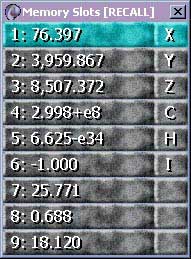
There are three ways to move to a particular memory slot:
This can be used to store fundamental constants such as c (the speed of light) or h (Planck's constant) as shown in the example.
On Top - When clicked on, the calculator will always appear above all other applications. This will allow for a calculation to be made and be displayed, even after switching to a second application which may be obscuring the entire screen.
Small - In Small view, only the top two numbers of the stack are displayed. (The stack still holds ten positions, however)
Medium - In Medium view all ten numbers of the stack are displayed.
Large - In Large view only the top two numbers of the stack are
displayed. However, all of the
push buttons are also displayed. The push buttons, both allow a mouse
to be used with the
calculator and also make the key mappings as explicit as possible.
Copy - This copies the bottom number of the stack onto the clipboard. Hitting <ctrl>-<insert> will accomplish the same thing.
Paste - This pushes the number currently, stored in the clipboard
onto the stack. Hitting
<shift>-<insert> will accomplish the same thing.
Options - Selecting this will bring up the options dialog box.
Help - This will bring up the Aepryus Calculator help system.
About - This will display the About information.
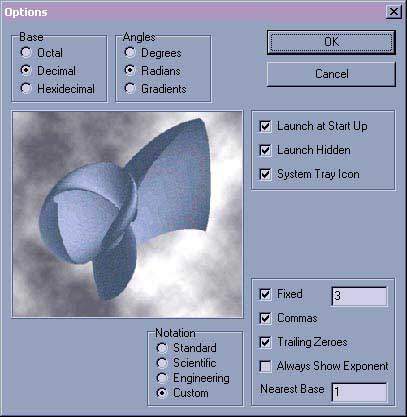
Base - This is the number base which numbers are entered and displayed in.
Angles - This determines how the angles are being entered in calculations. There are 360 degrees in a circle and 90 degrees in a right angle. There are 2p radians in a circle and p/2 radians in a right angle. There are 400 gradients in circle and 100 gradients in a right angle.
Launch at Start Up - Clicking this on will add an AepCalc shortcut to the startup menu, which will cause the program to automatically, launch when the computer is turned on.
Launch Hidden - This will cause the program to launch only as a system tray icon when launched. This is useful when having the program launch at Start Up, so that the calculator doesn't automatically, pop up, but the tray icon does.
System Tray Icon - This will create a system tray icon for the AepCalc. Double clicking on the tray icon will bring the calculator up and/or bring it to the front. Hovering the mouse over the tray icon will display the current value at the bottom of the stack. Also, double right clicking on the icon will terminate the AepCalc program.
Notation
Standard - trailing zeroes off, always exponent
off, nearest base = 1.
Scientific - trailing zeroes on, always exponent
on, nearest base = 1.
Engineering - trailing zeroes on, always
exponent on, nearest base = 3.
Custom - you decide…
Fixed - If clicked on, all numbers will display a maximum number of decimal places specified in the text box to the right of the check box. Otherwise, all decimal places will be displayed.
Commas - If clicked on, commas will be inserted every three place values.
Trailing Zeroes - If clicked on, trailing zeroes will be displayed, otherwise all trailing zeroes will be removed from the display.
Always Exponent - If clicked on, the exponent will always be shown. If clicked off, the exponent will only be shown when not enough room exists to display the number in full form.
Nearest Base - The nearest base is the number which the exponents
base is rounded to when displaying the exponent. For example, in Engineering
notation the Nearest base is 3, meaning that the exponent is always shown
in multiples of three. In custom mode, this can be set to anything from
1 to 5.
Fixed
Exp(x) function bug
+/- function bug
Version 1.1
New and Improved
Improved Help File
Install and Uninstall Support
New Shareware Duration Mechanism
Improved Copy / Paste
Added support for 16 and 256 color displays
All menu options can now be executed from keyboard or buttons
Tray Icon Popup Menu
Fixed
Log of 0 crashing problem
Numerous error recovery problems
Autostart mechanism now works
F12 added as a backup to the NUM LOCK key, if it doesn't work (Win95)
Keyboard (+ - * /) now work, in addition to the Numpad keys
Various problems with minimizing and restoring
or visit our web site at
Last Modified March 9, 2001
Copyright © 2001, Aepryus Software