Aepryus : Products : AepGraph : AGHelp
Aepryus Graph is a function visualization application with four primary goals:
Through these points and of course with the addition of price, it is believed that AepGraph can settle into a niche in the mathematical software market in the face of high-priced / high powered math software. It is believed that even for people who already own copies of and know how to use one of those high priced software packages, there is reason to add AepGraph to their arsenal of math software.
The following is a brief discussion of how it is believe AepGraph accomplishes each of those four points.
to be as easy to use as possible
Since AepGraph is a dialog based application as opposed to some cryptic command based system a user who has never used the program before has a decent chance of successfully plotting their first function without the use of a manual or even the help file.
The program uses as natural of a syntax as possible, making use of implied multiplication and parentheses as in normal mathematical notation.
to be small and quick
The program is relatively small (about a megabyte) and fairly quick. It opens and closes almost instantaneously (relative to human metabolism, anyway). A user can pop in, plot their function and pop out again rather painlessly.
to enable the visualization of as high a number of functions as possible
A function contains a number of input variables and a number of output variables. For example, a function describing the temperature of each point of a room, would have three input variables (x, y, z : space) and one output variable (T : temperature). In order to visualize the largest number of functions it is desirable to be able to handle the largest number of input and output variables. AepGraph has been designed to handle one, two or three input (independent) variables (u, v : parametric space variables; t : parametric time variable) and one, two or three output (dependent) variables (x, y, z : space).
to render high quality and aesthetic plots which provide a clear view of a function
Visualization of three dimensional plots, especially, can be difficult even when plotted on a computer. Creating images where function surfaces are solid help tremendously. Adding a light source which provides shading on function surfaces, also provides a huge leap in the clarity of a plot. These features as well as the ability to view a function in it’s optimum coordinate system (Cartesian, cylindrical or spherical) all aid in allowing the user understand the function. Also, the ability to fly around a function; to move in and out and around the function further increases the ease of visualizing a function.
(This section is probably of dubious value, considering that you are currently reading a help file which can’t be accessed until after installation, but what the hey)
AepGraph is distributed in an Auto-Unarchiving executable file. Double click on this file and follow the on screen directions. The setup program will ask for a directory where you wish to store the program files, other than that it will do everything itself.
Note (actually, more of a digression): In general, there is a general dislike of a number of the base constructs of Microsoft’s operating system such as the setup hell that DLLs and the registry cause. Because of the problems with incompatible DLL versions or missing DLLs or PATH problems, DLLs or any type of common library files are not used by AepGraph. Not that the concept of DLLs is a bad one, but it needs to be revamped. The first thing I would do is create one standard directory for any dynamic library file, all library files must go in this directory and that directory would automatically be in the path. The second thing I would do is create file versioning in that directory (similar to VMS perhaps, e.g. QuickTime.DLL;3.2), so multiple files of the same DLL would be able to be stored in the directory. If a program that uses a particular DLL recognizes that a new version has been installed, perhaps a dialog box asks the user if they wish to attempt to use the new DLL with the program, but if not it would continue to automatically use the old version. Or perhaps, instead, the user must actively tell the program to use the new version. I would also require any application to register itself in a database with a list of each of the library files and its version that it uses. This way when uninstalling an application a simple query of the application database would tell the uninstall program whether the DLL is still needed. Periodically or on an on-demand basis the operating system could search the DLL directory for library files that are not being used by any registered programs and delete them.
The registry causes its own set of problems, especially when moving programs from one directory to another. Because of this AepGraph automatically detects if it has moved and readjusts everything appropriately. Basically, you could copy the AepGraph executable to a new computer and run it and it would figure everything out. The registry itself is also not a bad concept, particular when dealing with computers used by multiple people. But, there is too much damage that can be done to computer system by applications. Basically the registry concept could work if application developers used care when making manipulations. Also, It would be nice if to uninstall a program a user could simply drag it to the recycle bin. But, currently that’s not possible. Perhaps if all keys associated with a particular application were stored in its own directory, the registry would stay cleaner. Obviously, that may cause some unwanted performance issues and in general once people get used to Uninstalling their programs rather than deleting them this wouldn’t be necessary.
Another useful step is if application developers explicitly announced all of the modifications that their programs make to the registry, so in case something goes wrong a knowledgeable user could recover their system short of bombing the entire thing.
For example,
AepGraph 1.0 makes the following changes to the registry:
HKEY_LOCAL_MACHINE
Add Key – SOFTWARE\Microsoft\Windows\CurrentVersion\Uninstall\AepGraph
Add Key – SOFTWARE\Aepryus
Add Key – SOFTWARE\Aepryus\AepGraph
HKEY_CLASSES_ROOT
Add Key - .agr
Add Key - .agr\ShellNew
Add Key – AepGraph
Add Key – AepGraph\DefaultIcon
Add Key – AepGraph\Shell
Add Key – AepGraph\Shell\Open
Add Key – AepGraph\Shell\Open\command
HKEY_CURRENT_USER
Add Key – Software\Aepryus
Add Key – Software\Aepryus\AepGraph
Add Key – Software\Aepryus\AepGraph\MRU Items
Add Key – Software\Aepryus\AGScreen
In order to uninstall AepGraph go to the ‘Add/Remove Programs’ in the control panel. Aepryus Graph 1.0 should be listed among the installed programs. Click on Aepryus Graph 1.0 and hit the ‘Add/Remove…’ button. This should remove all evidence of AepGraph from your system.
Aepryus Graph is not freeware. It is permissible to try out Aepryus Graph free of charge for a period of 30 days after installation, if the program is to be used beyond 30 days, however, it must be register. The registration fee is a reasonable $30.
In order to register AepGraph please visit our web site at
http://www.Aepryus.com/ .A Plea: Registration of AepGraph helps support Aepryus Software’s efforts to create affordable high quality scientific applications. There are numerous other applications which we are interested in developing (see the web site), but may be unable to do so because of lack of funding. Also, registration, helps support improvements and additions to AepGraph itself. So, if you use AepGraph please register it.
As stated previously the function syntax was designed to be as straight forward as possible. As such except for the power operator the syntax matches normal mathematical notation.
There are 6 operators (5 symbols) available in AepGraph, they are:
|
+ |
a + b |
addition of two operands |
|
- |
-a |
negation of operand |
|
- |
a – b |
subtraction of two operands |
|
* |
a * b |
multiplication of two operands |
|
/ |
a / b |
division of two operands |
|
^ |
a ^ b |
power of two operands |
In addition to operators, parentheses may also be used, in order to adjust order of precedence. In general all standard rules of precedence apply, namely:
parentheses then power then (multiplication and division) then (addition and subtraction)
Also, when two operands are not separated by an operator, multiplication is assumed.
In addition to these standard constructs a number of predefined functions exist. In order to make use of one of these functions use the form: name(a), where name is the name of the function. (A list of available functions follows in the reference section.)
Also, there is one special number, pi which can be used anywhere in a function, which is equal to p , which is the irrational number representing the ratio of the circumference of circle to its radius (~ 3.14159…)
Examples
|
Normal Notation |
AepGraph Notation |
|
|
u+1 |
|
|
2(u+1) or 2*(u+1) |
|
|
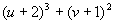
(u+2)^3+(v+1)^2 |
|
|
sin(u+2t)cos(uv+pi)^5 |
In both 2D and 3D mode it is possible to navigate the plotted function. In 2D mode navigation adjusts the view range of the function. In 3D mode navigation adjusts the view point, look vector and orientation.
In order to navigate a function, the view port must have the focus (click on it) and use the following keys:
2D
|
¬ ® ¯ |
Moves screen (left, up, right, down) |
|
ctrl + (¬ ® ¯ ) |
Expands screen (left, up, right, down) |
|
alt + (¬ ® ¯ ) |
Contracts screen (left, up, right, down) |
3D
|
¬ ® ¯ |
Spins Look Vector (left, down, right, up) as in an airplane |
|
ctrl + ( ¯ ) |
Moves View Point (Forward, Backward) |
|
ctrl + (¬ ® ) |
Spins Orientation Vector (Counter-Clockwise, Clockwise) |
|
alt + (¬ ® ¯ ) |
Strafe View Point (left, up, right, down) |
Navigation of a function requires the rapid plotting of the function by the application. For 3D functions with a high number of tiles the navigation may be quite slow. In general the plot speed of a 3D function is highly dependent on the number of tiles, if increased performance is desired, reduce the tile amount if possible.
In order to ease the creation of the AepGraph introduction and tutorials a script language was developed that allows the creation of automated use of AepGraph.
It is not exactly clear the usefulness of script languages to the end user, but perhaps if people want to create virtual lectures or such scripts can be of aid.
The scripts are stored as simple ASCII text files. The syntax is fairly straight forward. Each command appears on a line of its own. The parameters should appear after the command on the same line separated from the command by white space. Multiple parameters should be separated by commas.
Example,
//Aepryus Graph Script
PLAYWAV Welcome.wav
OPEN NewSamp.agr
PLOT 3D Aepryus
MESSAGE Welcome to Aepryus Graph
WAIT
PLOT Green Shell
WAIT
ANIMATE Green Shell
WAIT
STOP
WAIT
VIEWPORT 100,100
PLOT Pool
WAIT
MESSAGE The End is Nie
VIEWPORT 400,500
PLOT Pool
TAB Time
WAIT
TAB General
A list of available script commands, their parameters and what they do appears in the reference section.
In order to run a script file automatically upon execution of AepGraph, use the –s flag when calling the executable. (e.g., AepGraph –sScript.txt)
Just for fun, Aepryus Graph includes a screen saver which makes it possible to use any function as a screen saver. When AepGraph was installed it automatically copied the screen saver to the directory where screen savers are stored.
In order to enable the AepGraph Screen Saver run the Display properties dialog box. The dialog box can be executed by opening the control panel and double-clicking the Display icon or by simply right clicking anywhere on bare desktop and selecting properties. A tabbed dialog box should appear; move to the ‘Screen Saver’ tab. A drop down box with a number of screen savers should be visible. If using WinNT the screen saver will be listed as ‘Aepryus Graph 1.0’, in Win95 it will be listed as ‘AGScreen’. Select the screen saver.
In order to adjust the screen saver settings hit the ‘Settings…’ button. This will bring up the AepGraph Screen Saver options dialog.
The screen saver will record the animation for any function in a window of the size defined in the dialog. After it has rendered the function it will display the function using the specified options. Here is a brief description of the options:
Height the height in pixels of the window to be used to render the function
Width the width in pixels of the window to be used to render the fucntion
Floating if checked the function will bounce around the entire screen
Reverse if checked the direction of the animation will reverse when hitting the side
Graph File the file with the functions that will be used in the screen saver
(functions) the function within the Graph File to be used by the screen saver
Random if checked a random function within the file is used on each running
Just as with AepGraph itself, recording a function movie can be memory intensive and so care should be taken when specifying the Height and Width, so as not bring your system to its knees. If memory problems exist (slow animating coupled with much disk activity), reducing the size of the height and width will help tremendously. The other variable that can be useful is the number of frames specified in the function itself. By reducing that number much memory can also be saved.
š Menus
File/New
This closes any currently open AepGraph file and opens new blank AepGraph file.
File/Open
Opens a dialog box for selecting a new AepGraph to load. The current file is closed and the selected file (if any) is then opened.
File/Save
Saves the currently open AepGraph file. If the file does not have a name already a dialog box opens up requesting the user to specify a name for the file.
File/Save As
Opens a dialog box allowing the user to specify a new file name, after which the file will be saved to that name.
File/Print
This will print the current function.
File/Exit
This will close the current file and exit AepGraph.
File/[Recent Files]
A list of recently touched files, which can automatically be reopened by selecting them from this list.
Function/Plot
This will plot the current function.
Function/Animate
If the number of tiles in the current function is less than the Real-Time Tile limit or if the memory required to record the animation is greater than the Recorded Animation Memory limit this will enact a Real-Time animation of the current function. Otherwise it will recorded the animation for the current function and then display the recorded animation.
Function/Navigate
This menu option simply sets the focus to the View Port, which is necessary to Navigate a function. Instead of selecting this menu option the View Port could simply be clicked on.
Function/Cut
This deletes and stores the current function on to a special AepGraph clipboard. (Not the standard clipboard)
Function/Copy
This copies the current function on to a special AepGraph clipboard.
Function/Paste
This inserts the currently stored AepGraph function into the currently opened AepGraph file.
Function/Delete
This deletes the current function.
Function/Create
This opens the new function dialog box which contains a list of template functions on which to base the new functions. Selecting one of the templates, creates a new function in the current file using the template functions settings.
Tools/Import/Export
This menu options opens the import/export utility, which allows for the transfer of functions between various AepGraph files.
Tools/Run Script
This opens a dialog box in which can be used to select an AepGraph script file which will than be executed by AepGraph.
Tools/Options
This opens the options dialog box.
Help/Aepryus Website
This will launch the systems default web browser and point it at
http://www.Aepryus.com/; Aepryus Software’s home page.Help/AepGraph Page
This will launch the systems default web browser and point it to
http://www.Aepryus.com/AepGraph.html Aepryus Graph’s home page. The page contains updated help files, bug reports, access to the latest downloads and access to the registration screens.Help/About
Opens the Aepryus Graph About Box.
š
FieldsGeneral/Dimension
All plots in AepGraph will either have 2 or 3 spatial dimensions. This set of radio buttons selects how many spatial dimensions the function will have.
General/Description
A text field where a short description of the function should reside.
General/Notes
A larger text field where any notes, instructions or explanations can appear.
Function/X
Text field for the entry of the dependent spatial x dimensions definition resides. (See Function Syntax 1.6)
Function/Y
Text field for the entry of the dependent spatial y dimensions definition resides. (See Function Syntax 1.6)
Function/Z
Text field for the entry of the dependent spatial z dimensions definition resides. (See Function Syntax 1.6)
Domain/UV Start:Finish:Steps
Contains the domain of both (one in 2D) of the independent spatial variables u and v. Each domain contains a Start and Finish value which is the domain of values to be plotted for each variable. A Steps box also exist, which is the number of sections the domain is to be divided up into. The larger the number of steps, the more accurate the plot, but the slower plotting time.
2D View/Coordinates
2D plots can be done in either Cartesian coordinates  or in polar coordinates
  .
.
2D View/Range Start/End/Grid
This represents the initial view range of the view port. The Grid variable represents the size of each Grid box. (See ‘Square Scale?’ below)
2D View/Function
The check box specifies whether the plot of the function itself will be shown. The color represents the color that the function is to be plotted in if plotted.
2D View/Derivative
The check box indicates whether the function’s derivative is to be plotted. The color represents the color the derivative is to be plotted if plotted.
2D View/Axis
The check box specifies whether the Axis is to be plotted or not. The color is the color the axis should be plotted in if plotted.
2D View/Grid
The check box determines if the Grid is to be plotted or not. The color is the color of the grid if plotted.
2D View/Background
The color box represents the color that the Background is to be plotted in.
2D View/Square Scale?
When this box is checked the scale of the x and y axis is the same. The scale is based on the x axis and the y axis is converted appropriately. The center of the y range is maintained, but the Start and End of the y-axis are basically ignored. While navigating the 2D function with ‘Square Scale?’ checked, expansion or contraction of the y-axis will not modify the scale at all. It will however adjust the center of the y range.
3D View/Coordinates
A 3D function can be viewed in any of three coordinates systems: Cartesian  , Cylindrical
  or Spherical
  .
.
3D View/View
The view point (x,y,z) (always in Cartesian) where the viewer is to be located.
3D View/Light
The light point (x,y,z) (always in Cartesian) where the light source is located.
3D View/Surface
The check box specifies whether the surface is to be displayed. The color represents the color associated with a surface with no light incident on it.
3D View/Light
The check box determines if a light source exists. The color represents the color of a surface with maximal light incidence.
3D View/Net
The check box determines whether a fish net of the function is plotted in addition to the surface. The color is the color of that fish net.
3D View/Background
The color of the background to be plotted.
3D View/At Origin
Determines if the camera is to automatically be pointed at the origin.
Time/Start:Finish:Frames
Represents the start and finish values of the independent time variable t. The Frames value represent the number of sections the time variables is divided up into.
Time/Target fps
This is the desired fps (frame per second) rate. The actual fps may differ from the target because the program can’t keep up with the desired fps. Or the operating system does not segment time with enough granularity to achieve the desired fps. The smallest time step the operating system will enact is .01 seconds, which equates to 100fps the next smallest is .02 seconds, which equates to 50fps, so consequently it is not possible to achieve an fps of 70.
Time/End Mode
The end mode determines what happens when a movie reaches its finish. It will either Repeat, meaning it will start over from the beginning. It will Reverse, meaning that it will switch directions. Or it will stop, meaning that it will stop.
š
Functionssin
the sine function.
cos
the cosine function.
tan
the tangent function.
sec
the secant function.
csc
the cosecant function.
cot
the cotangent function.
asin
the arcsine or inverse of sine function.
acos
the arccosine or inverse of cosine function.
atan
the arctangent or inverse of tangent function.
sinh
the hyperbolic sine function.
cosh
the hyperbolic cosine function.
tanh
the hyperbolic tangent function.
ln
the natural logarithm function.
log
the log base 10 function.
exp
the exponential function,  .
.
sqrt
the square root function.
abs
the absolute value function.
Last Modified January 20, 1999
Copyright © 1998, Aepryus Software